The Mac screenshot app for people who explain things
Shift-Command-5 is good at capturing. GrabCanvas is good at what comes after: scrolling capture, arrows and numbered steps, blur that finds email addresses for you, a quick MP4 or GIF, copy text from any screen, and a finished step-by-step guide exported with the image. Universal build, $29 once.
What the Mac gives you, and what it doesn't
macOS has the best built-in screenshot tool of any desktop: Shift-Command-5 captures a region, window or screen, records video and offers Markup. It does not scroll, its annotations are basic, and it has no OCR of its own (Live Text helps in Preview). CleanShot X fixes most of that beautifully, for the Mac only.
| Feature | GrabCanvas | macOS Screenshot (⇧⌘5) | CleanShot X | Shottr |
|---|---|---|---|---|
| Price | $29 once | Free (built in) | $29 + $19/yr for updates | Free / $8 pro |
| Scrolling capture | Yes | No | Yes | Yes |
| Numbered steps that become a written guide | Yes | No | Numbers only | Numbers only |
| Auto-detect and blur email addresses | Yes | No | Manual | Manual |
| Screen recording to MP4 and GIF | Yes, with trim | MOV only | Yes | No |
| Copy text from screen (OCR) | Yes, on-device | Via Live Text in Preview | Yes | Yes |
| Export guide to Markdown, Word, HTML, PDF | Yes | No | No | No |
| Cloud upload service | Your own cloud folder | No | CleanShot Cloud (paid tiers) | No |
| Also on Windows and Linux | Yes, same license | No | No | No |
CleanShot X remains the best pure-Mac tool if you never touch another OS; see the full CleanShot X comparison. Feature claims based on vendor documentation in October 2026.
Place the step markers, get the write-up
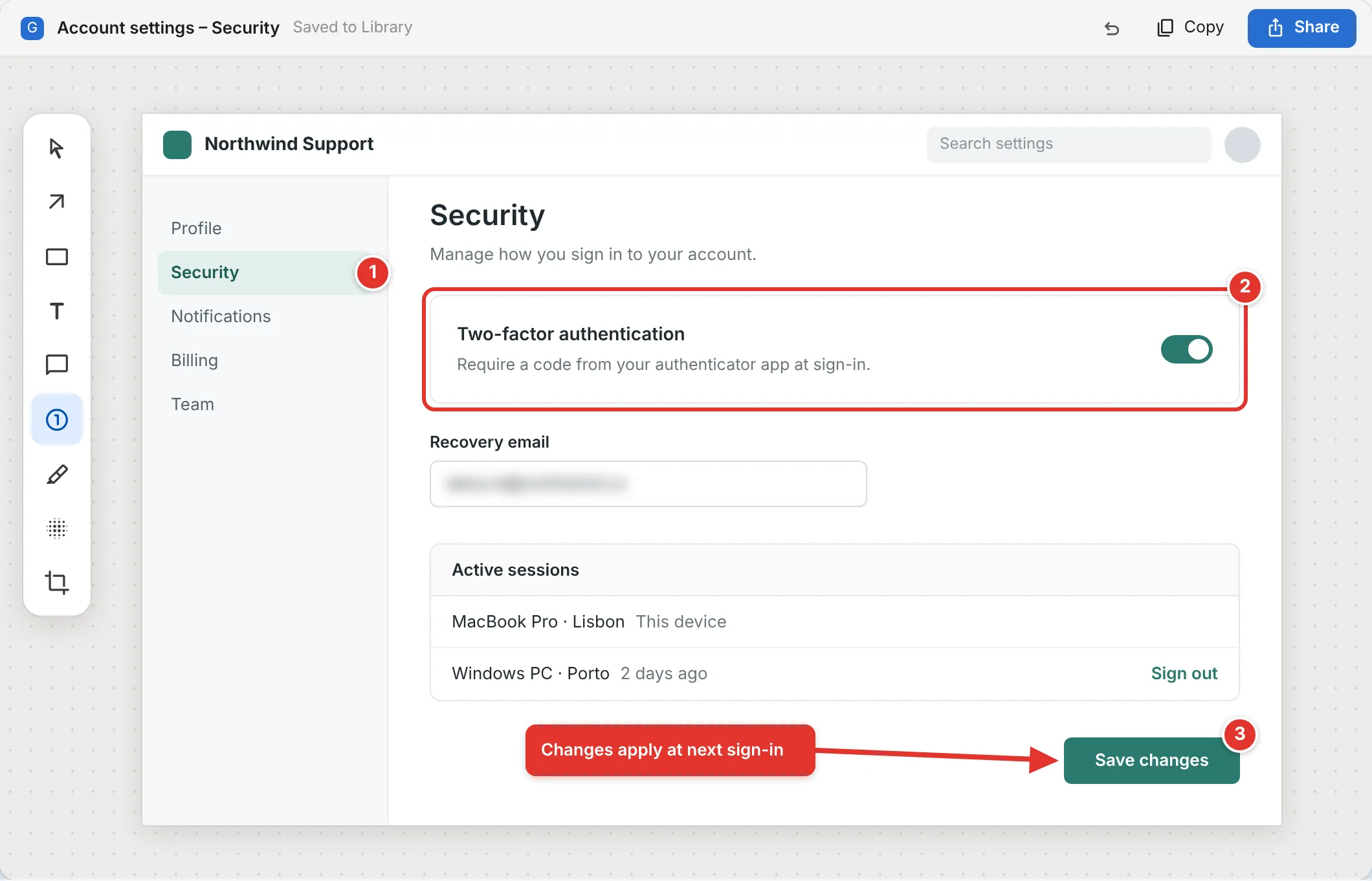
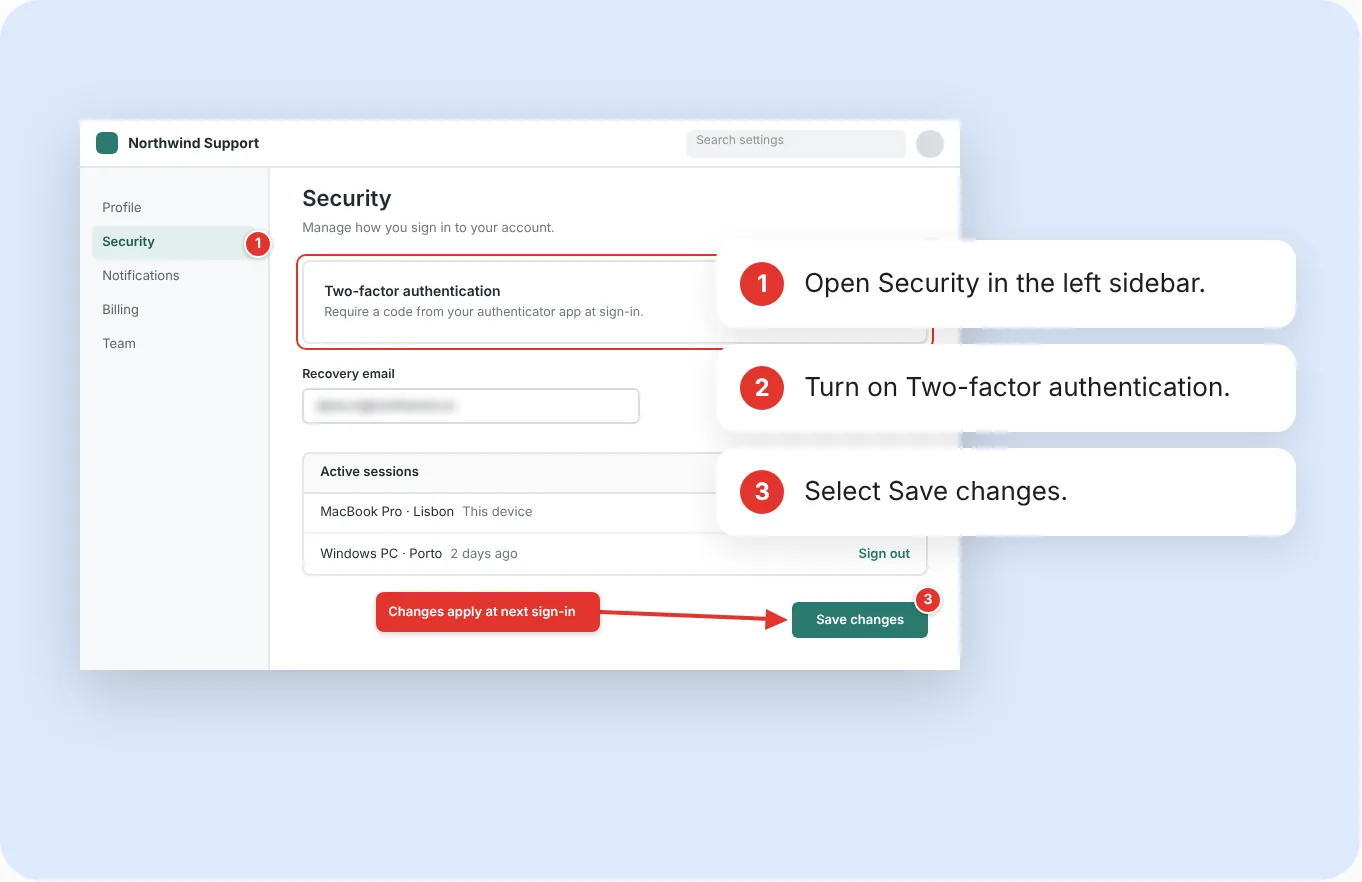
Click to drop numbered markers on a capture and GrabCanvas builds the steps list beside it. Type the instruction for each step, drag to reorder, and the numbers on the image follow. Export as Markdown for Notion or a README, as Word for the people who want a document, or as PDF for a customer. The image goes with it, markers baked in.
It's the difference between a screenshot and an answer.
Behaves like a Mac app should
Mac questions
Why does GrabCanvas need the Screen Recording permission?
macOS requires any app that reads the screen, even for a still screenshot, to be granted Screen Recording under System Settings → Privacy & Security. GrabCanvas asks once at first launch and opens that pane for you. The Microphone permission is only requested if you record with voice-over.
Is GrabCanvas native on Apple silicon?
Yes. The single Universal build contains native code for M-series and Intel Macs.
Does it replace Shift-Command-5?
It can. Set GrabCanvas's region capture to ⇧⌘4 and full screen to ⇧⌘3 in Preferences and macOS hands those keys over. Or keep both and use GrabCanvas only for the screenshots you need to annotate.
Try it on your Mac
Every feature in the free trial. $29 once when you're sure, or claim a free launch license.