Screenshot, annotation and screen recording features
Six things GrabCanvas does well: capture (including scrolling pages), annotate, record, copy text from the screen, turn captures into step-by-step guides, and share. All of it is in the free trial, and all of it is yours for $29.
Capture any region, window, full screen or scrolling page
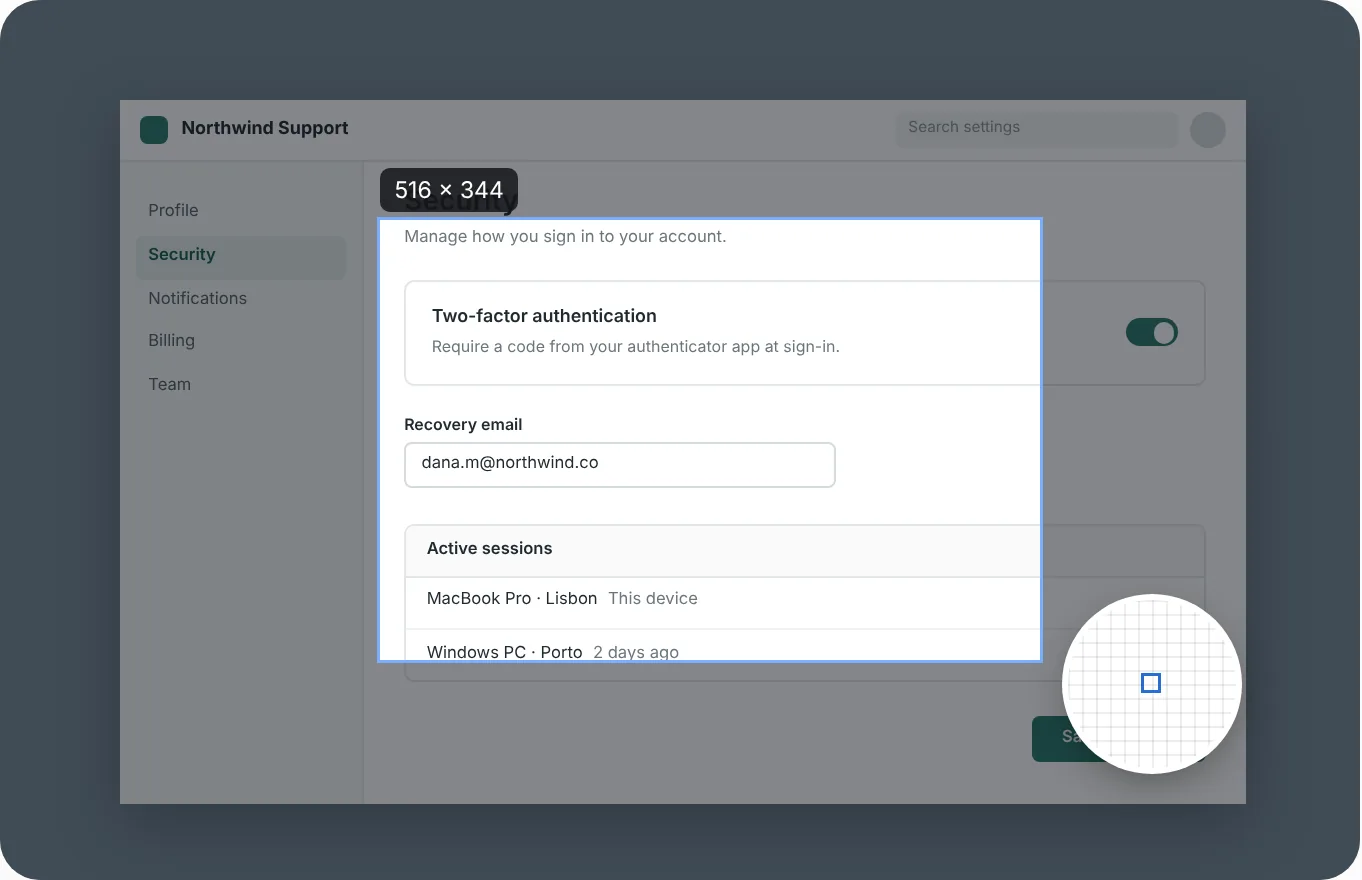
Press the shortcut and drag. A magnifier follows the cursor so you can land the edge on the exact pixel, and the live size readout tells you what you're getting. Hover a window and it snaps to the window's frame, including the shadow if you want it.
Scrolling capture takes a page that runs past the bottom of the screen and stitches it into one tall image: a long web page, a settings panel, a chat thread, a spreadsheet. Delayed capture gives you a few seconds to open a menu, a tooltip or a dropdown that disappears the moment you press a key. Saved presets remember a region and a destination so a recurring capture is one keypress.
Every capture lands in the Library, so the one you took an hour ago is still there to edit or share.
Annotate with arrows, callouts, numbered steps and blur
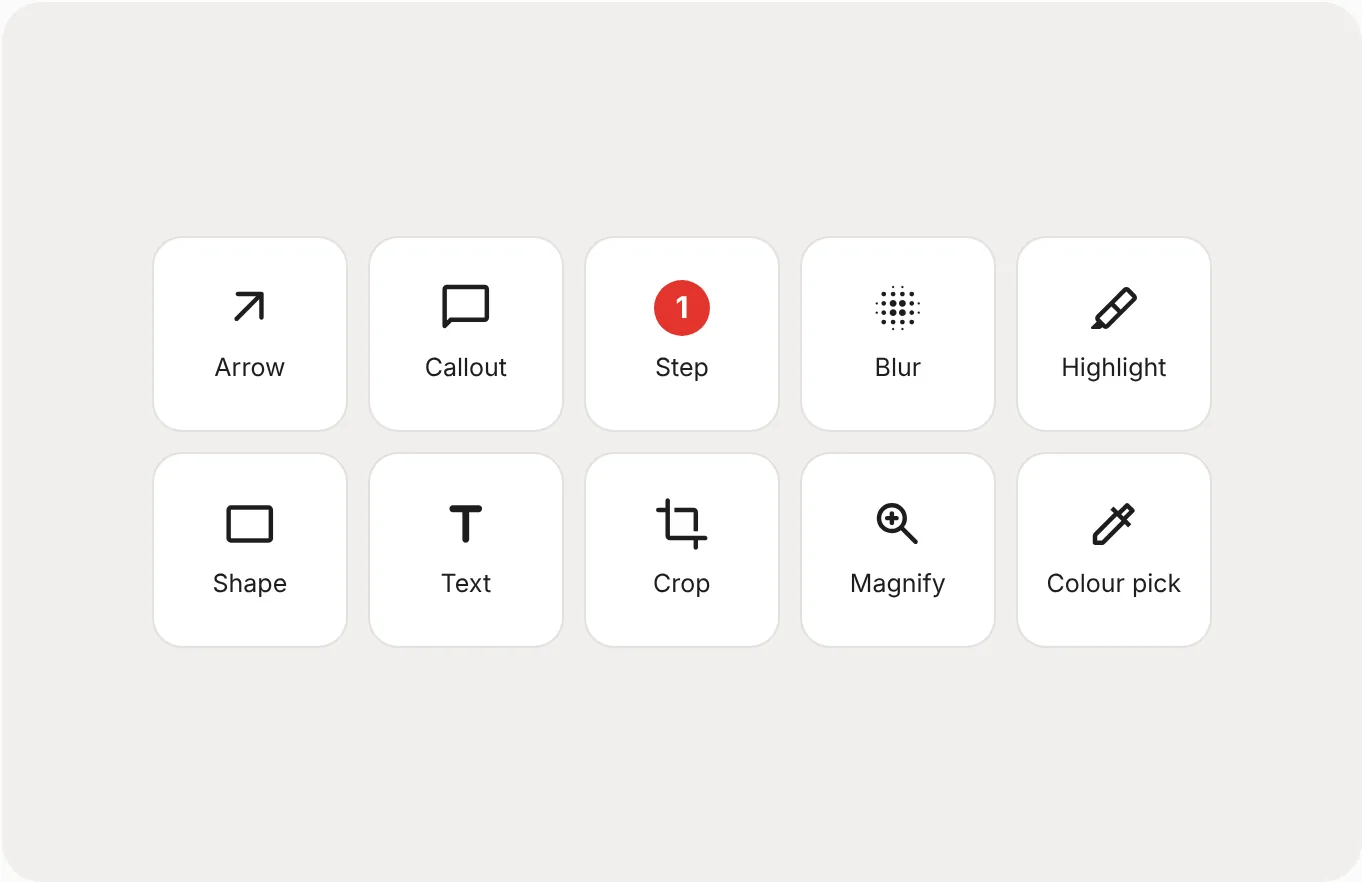
The editor opens the instant a capture finishes. Arrows and callouts point at the thing that matters. Numbered steps count up as you click, and renumber themselves when you drag one earlier or later. Highlight draws the eye without hiding what's underneath. Shapes, text and a magnifier inset cover the rest.
Blur does the privacy work for you: it finds email addresses in the capture and offers to blur them in one click, and you can drag to blur anything else, such as names, account numbers or faces. Crop trims the capture, and the color picker reads any pixel for your design notes.
Styles you use often stay one click away. Set a color, stroke and font once and every later arrow or callout uses it, so screenshots across a whole guide look like they belong together. Undo goes all the way back to the raw capture.
Record your screen to MP4 or GIF
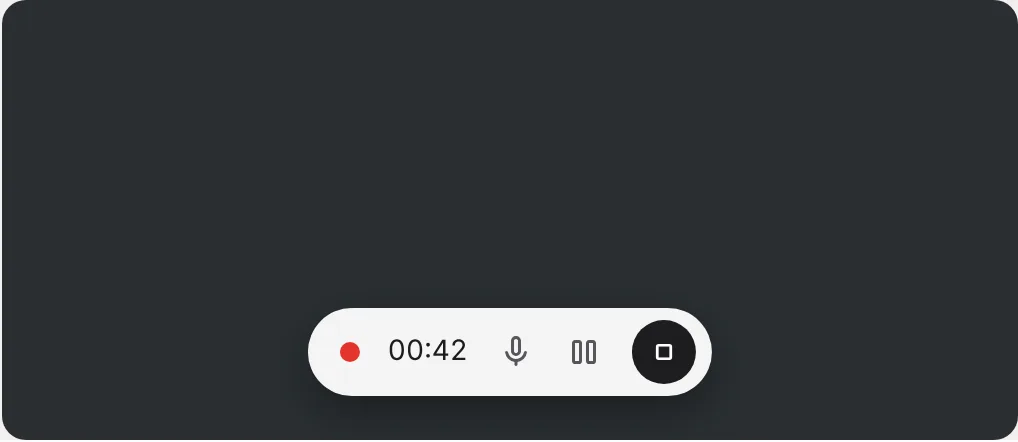
When a still image can't show it, record it. Pick a region, a window or the full screen. Record the microphone, system audio, both or neither. Pause and resume without starting over.
When you stop, trim the start and end, then export an MP4 for a ticket or a GIF for a chat message or a README. Short recordings of a bug, a setting or a workflow are often clearer than three paragraphs of text, and they take less time to make.
Recording on Windows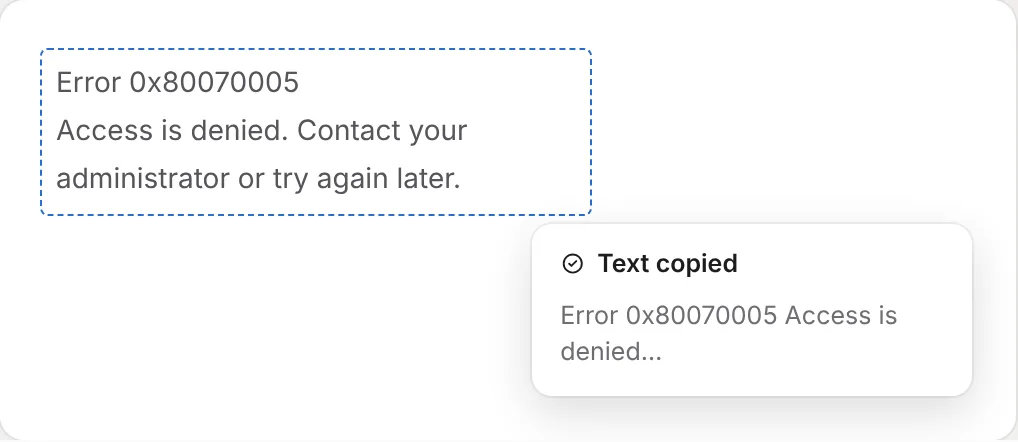
Copy text you can't select
Drag over an error dialog, a screenshot someone sent you, a slide in a video call, an image or a paused video, and the text is on your clipboard. Paste it into a search, a ticket or a terminal.
Recognition runs on your computer, so it works offline and nothing is uploaded. It handles error codes, file paths and URLs, the things you most often need to copy and can't. Line breaks are kept so a pasted stack trace still reads as a stack trace.
Try it in the free trialTurn screenshots into step-by-step guides
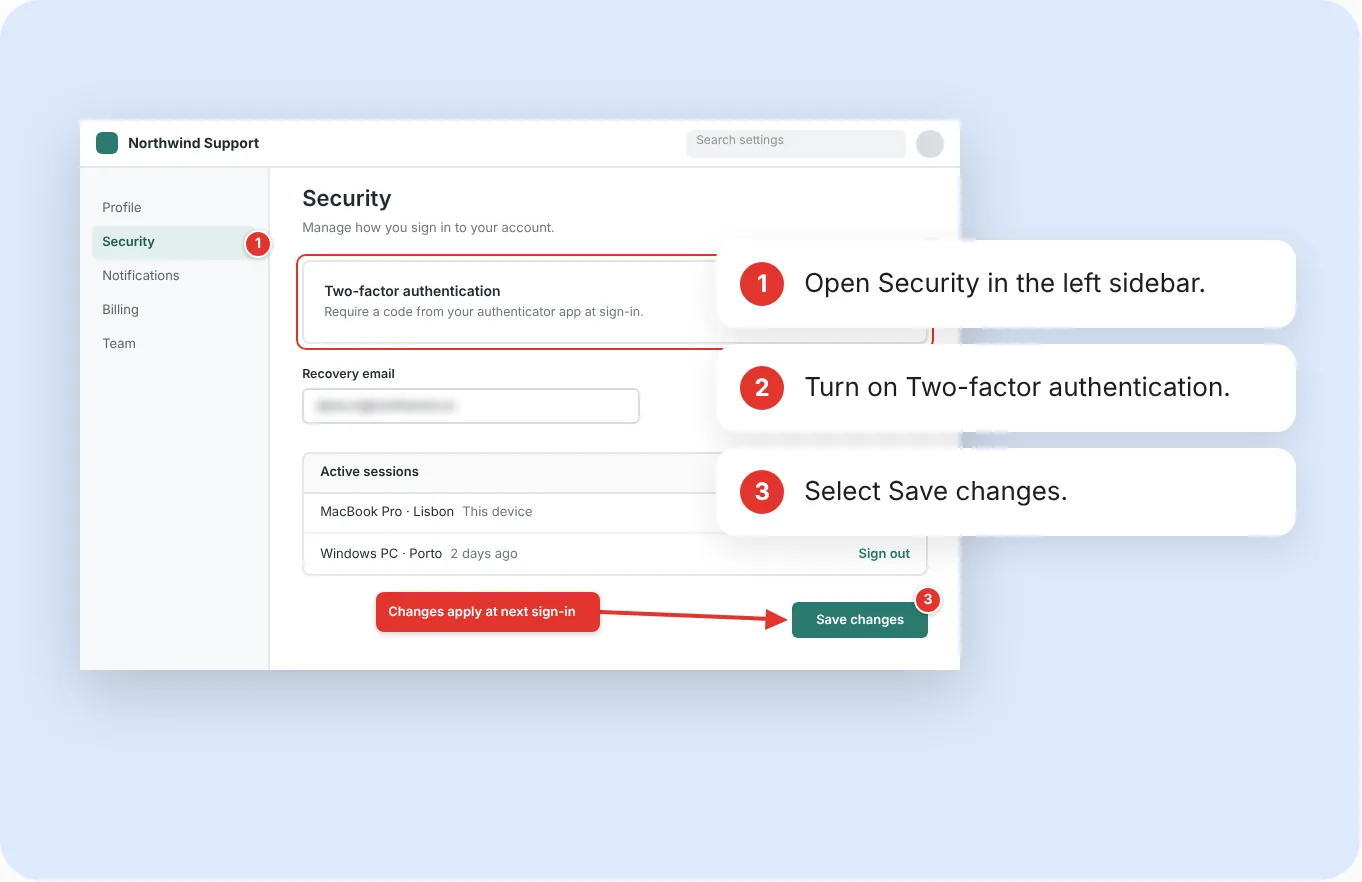
This is the feature that makes GrabCanvas different from a plain screenshot tool. Every numbered step marker you place on a capture gets a line of text in a steps list beside the image. Write the instruction, reorder the steps and the numbers on the image follow.
When you're done, export the image and the steps together as a Markdown file, a Word document, an HTML snippet or a PDF. Paste the Markdown into a wiki, a README or a Zendesk article; hand the Word file to someone who needs it in a document; send the PDF to a customer. The image is saved alongside with the markers baked in, so the guide stays readable wherever it ends up.
Support agents use it to answer a ticket with a three-step how-to instead of a wall of text. Documentation writers use it to produce consistent screenshots across a whole help center. IT teams use it to write the onboarding guide once and keep it current.
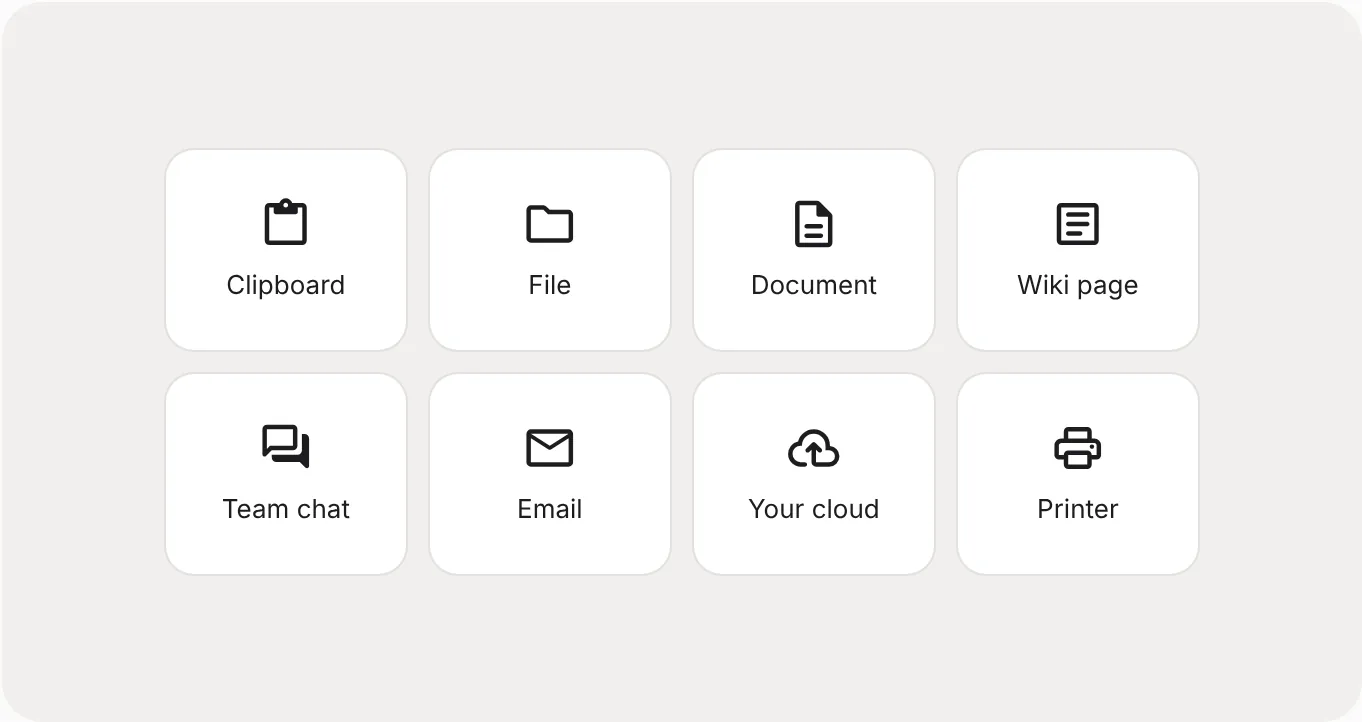
Share to clipboard, file, cloud or chat
Copy the finished capture to the clipboard and paste it anywhere, or save it as PNG, JPG, WebP, PDF or GIF at 1× or 2× for Retina and HiDPI documentation. Drag the capture straight out of the editor into a document, an email or a chat window.
If you use cloud storage, point GrabCanvas at the folder your provider syncs (Dropbox, Google Drive, OneDrive, iCloud Drive or an S3 bucket mounted on your machine) and share the link your provider gives you. GrabCanvas does not run its own upload service, so there is no account, no link that expires and no third party holding your screenshots.
Captures stay on your computer unless you choose a destination that leaves it. That is the whole privacy policy, and it is also the reason there is nothing to pay for every month.
Default keyboard shortcuts
Every shortcut can be changed in Preferences. On macOS, use ⌘ in place of Ctrl.
| Action | Windows / Linux | macOS |
|---|---|---|
| Capture a region | Ctrl Shift 1 | ⌘ ⇧ 1 |
| Capture a window | Ctrl Shift 2 | ⌘ ⇧ 2 |
| Capture the full screen | Ctrl Shift 3 | ⌘ ⇧ 3 |
| Scrolling capture | Ctrl Shift 4 | ⌘ ⇧ 4 |
| Record the screen | Ctrl Shift 5 | ⌘ ⇧ 5 |
| Copy text from screen | Ctrl Shift 6 | ⌘ ⇧ 6 |
| Repeat the last capture | Ctrl Shift R | ⌘ ⇧ R |
| Open the Library | Ctrl Shift L | ⌘ ⇧ L |
| Cancel a capture | Esc | Esc |
System requirements
Feature questions
Does scrolling capture work in any application?
It works in web browsers and in most desktop applications with a scrollable window. GrabCanvas scrolls the window for you and stitches the frames into one image. A few applications draw their own scrolling (some Electron apps and games) and may need the manual scroll mode, where you scroll and GrabCanvas captures as you go.
Does GrabCanvas record system audio and the microphone?
Yes. Record the microphone, system audio, both or neither, and trim the result before exporting to MP4 or GIF. On macOS, system audio capture uses the Screen Recording permission you grant at first launch.
Does copy text from screen work offline?
Yes. Text recognition runs on your computer and nothing is sent to a server. It works on error dialogs, images, PDFs rendered on screen and paused video.
Which formats can guides be exported to?
Markdown, Word (.docx), HTML and PDF. The annotated image and the numbered steps are exported together, and the image is also saved as a PNG with the markers drawn on it.
Can I keep my annotations editable?
Yes. Captures in the Library keep every annotation as a separate layer, so you can reopen a screenshot next month, move a step marker and export again.
Try every feature free
Unlock it for $29 when you're ready, or claim one of 100 free launch licenses. Windows, macOS and Linux.